CloakIt

CloakIt scans your messages on Gen AI chat platforms and blocks sensitive data before it leaves your device. Everything runs locally — no data is ever sent to external servers.
Supported Platforms
CloakIt works on these sites:
| Platform | URL |
|---|---|
| ChatGPT | chatgpt.com |
| ChatGPT (legacy) | chat.openai.com |
| Claude | claude.ai |
| Gemini | gemini.google.com |
| DeepSeek | chat.deepseek.com |
How It Works
- You type a message into the chat composer on any supported platform.
- When you press Enter or click Send, CloakIt scans the message for sensitive data.
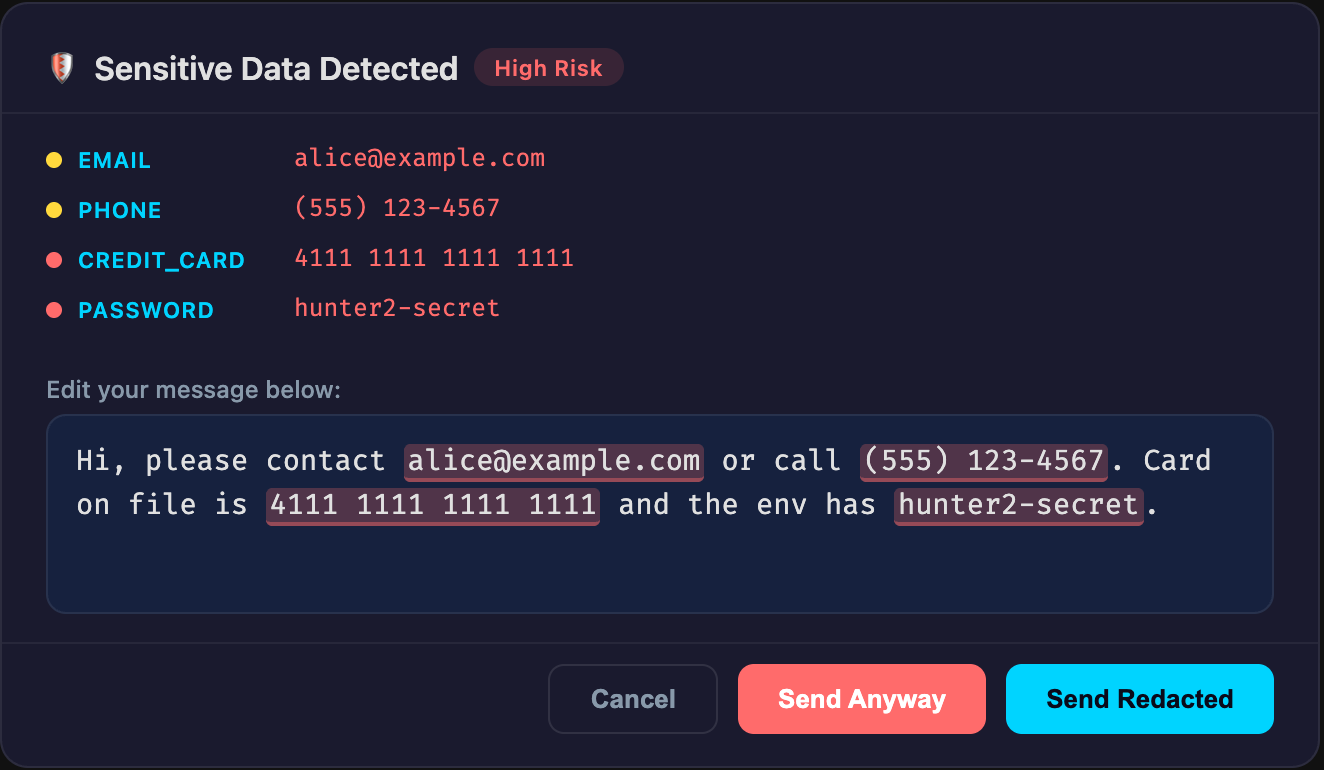
- If sensitive data is found, a modal appears showing what was detected. You then choose:
- Cancel — return to the chat to edit your message.
- Send Redacted — replaces detected data with
[REDACTED_TYPE]placeholders and sends the sanitised message. - Send Anyway — sends the original message unchanged (bypasses redaction).
The modal is draggable — click and drag the header bar to reposition it.
Popup Overview
Click the CloakIt icon in your browser toolbar to open the popup. It has five tabs:
1. Features Tab
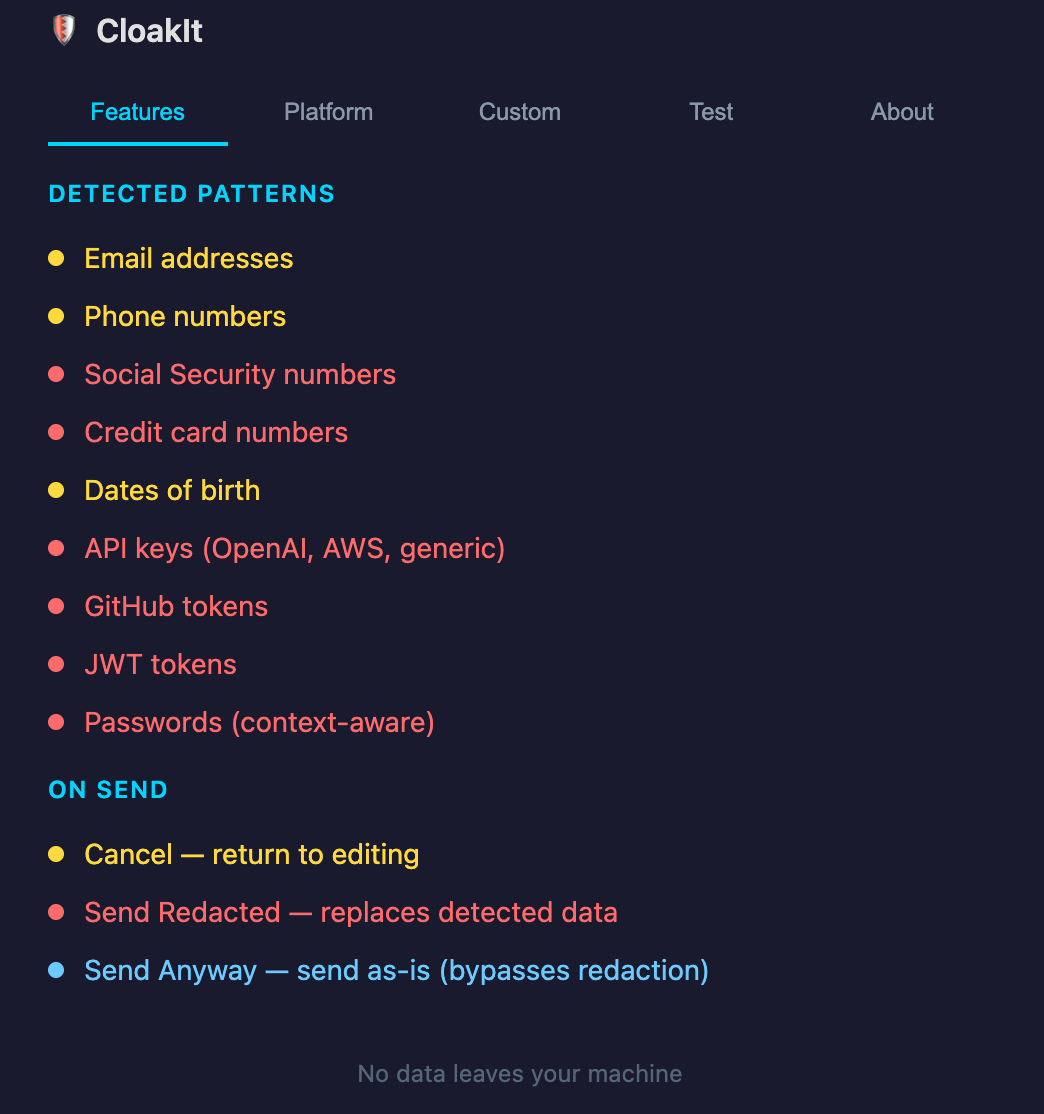
Lists all built-in detection patterns with their risk levels:
| Severity | Detected Patterns |
|---|---|
| High Risk (red) | SSN, credit card numbers, API keys (OpenAI, AWS, generic), GitHub tokens, JWT tokens, passwords |
| Medium Risk (yellow) | Email addresses, phone numbers, dates of birth |
Also summarises the three on-send actions (Cancel, Send Redacted, Send Anyway).
2. Platform Tab
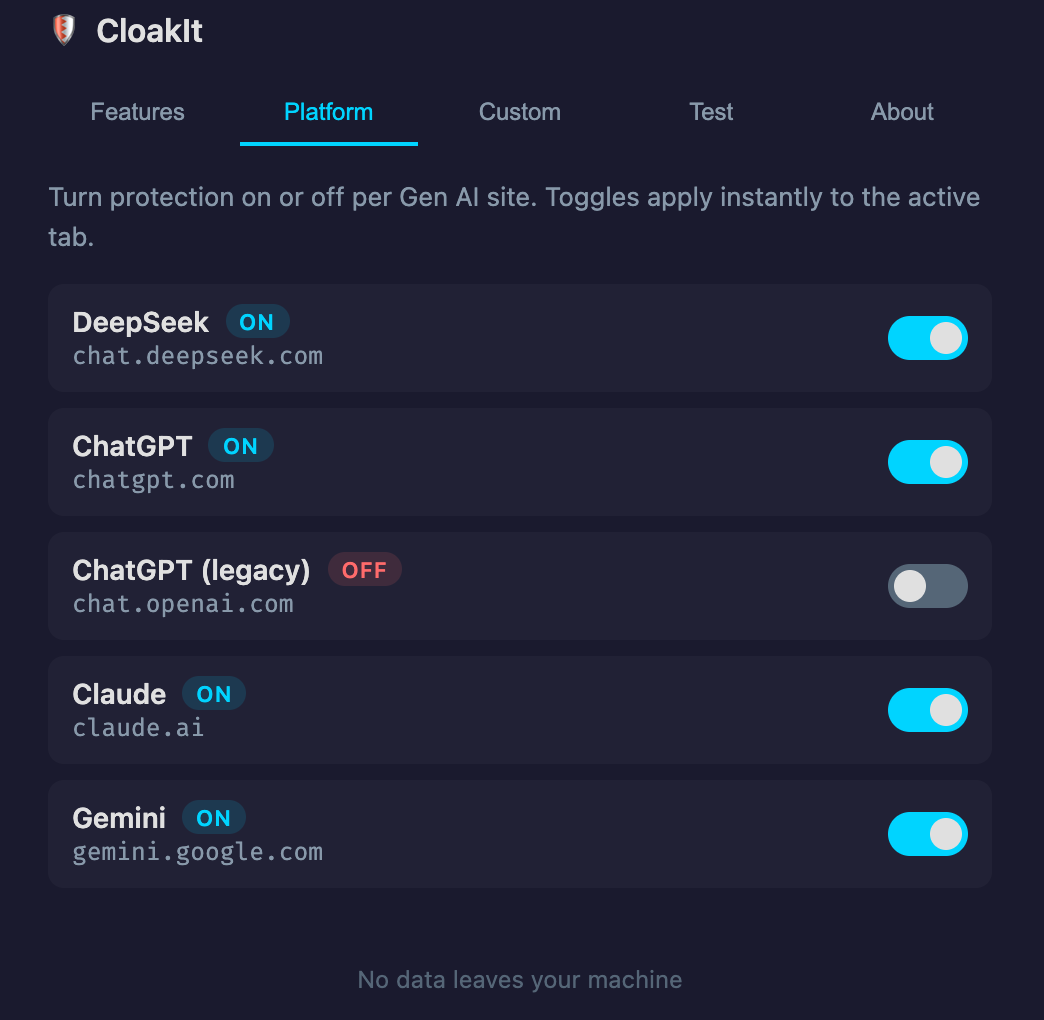
Toggle protection on or off for each supported platform individually.
- Each platform row shows a name, URL, and on-off toggle switch.
- Toggle off to disable CloakIt on that site (the extension will not intercept sends there).
- Toggle on to re-enable protection.
- Changes take effect immediately — the content script reads the setting before every send.
This is useful if you trust a particular platform or need to send known-safe data without interruption.
3. Custom Tab
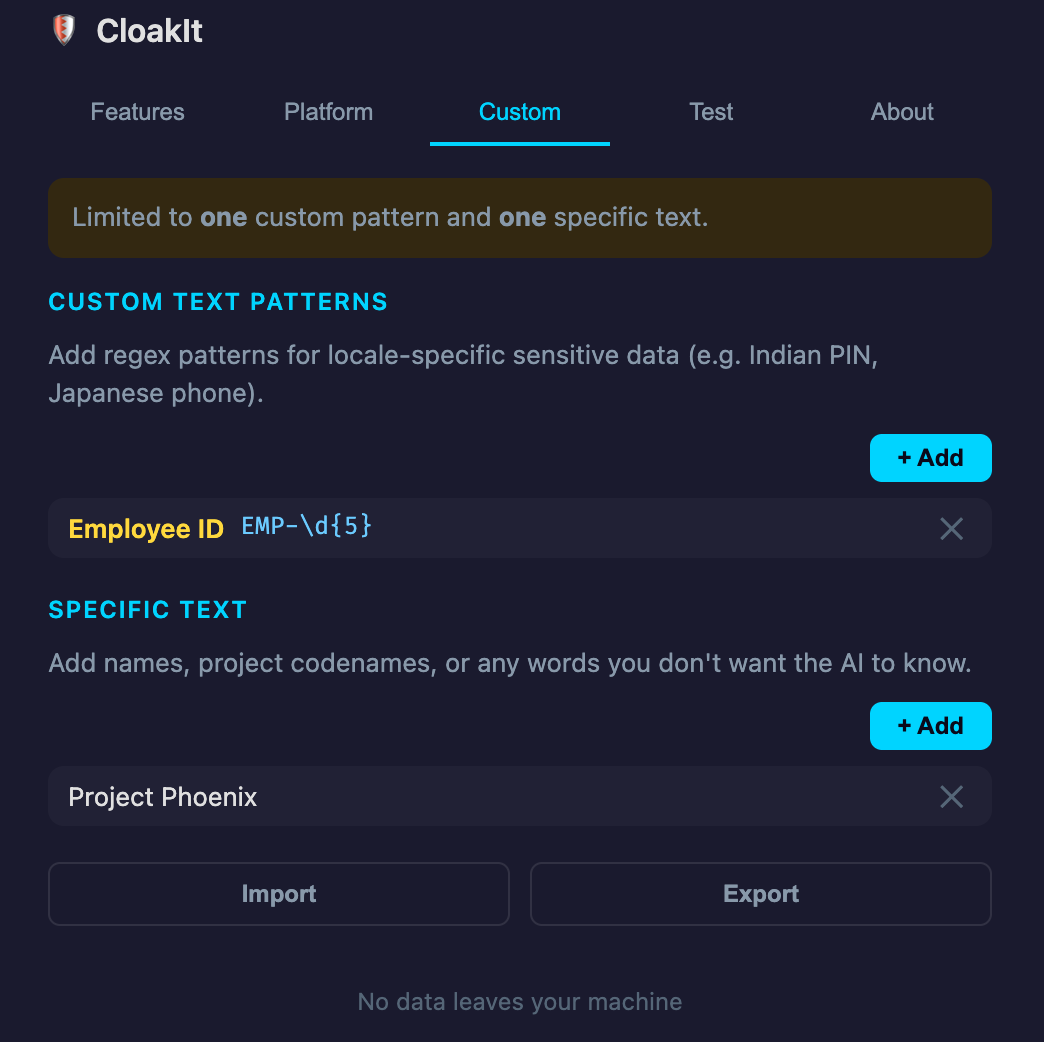
Add your own detection rules beyond the built-in patterns. Two types are supported:
Custom Text Patterns (Regex)
Define regex patterns for locale-specific or organisation-specific sensitive data. Examples:
| Use Case | Pattern |
|---|---|
| Indian PIN code | \b\d{6}\b |
| Japanese phone number | 0\d{1,4}-\d{1,4}-\d{4} |
| Employee ID | EMP-\d{5} |
To add a pattern:
- Click + Add under “Custom Text Patterns”.
- Enter a Label (e.g. “Indian PIN”).
- (Optional) Enter a Sample (e.g. “123456”) and click Generate — CloakIt will auto-create a regex from your sample.
- The Generated regex field can be edited manually if needed.
- Click Save.
Pattern Generator behaviour:
- Pure digits (e.g.
123456) →\b\d{6}\b - Digits with separators (e.g.
123-45-6789) →\b\d{3}-\d{2}-\d{4}\b - Pure alphanumeric (e.g.
EMP001) →\b[a-zA-Z0-9]{6}\b - Everything else → escaped literal match
Specific Text
Add exact words or phrases to block — such as names, project codenames, or internal jargon you do not want shared with AI models.
To add a text:
- Click + Add under “Specific Text”.
- Type the text (e.g. “John Smith” or “Project Phoenix”).
- Click Save.
Matched items appear as BLOCKED_TEXT with High Risk severity in the detection modal.
Import / Export
- Export saves your custom patterns, specific texts, and disabled platform settings as a
.jsonfile. - Import loads settings from a previously exported file. Duplicate entries are skipped.
Tier Limits
The free tier limits you to 1 custom pattern and 1 specific text. Items beyond the limit are stored but dimmed with an “(inactive)” label and are not scanned. Delete existing items to make room for new ones.
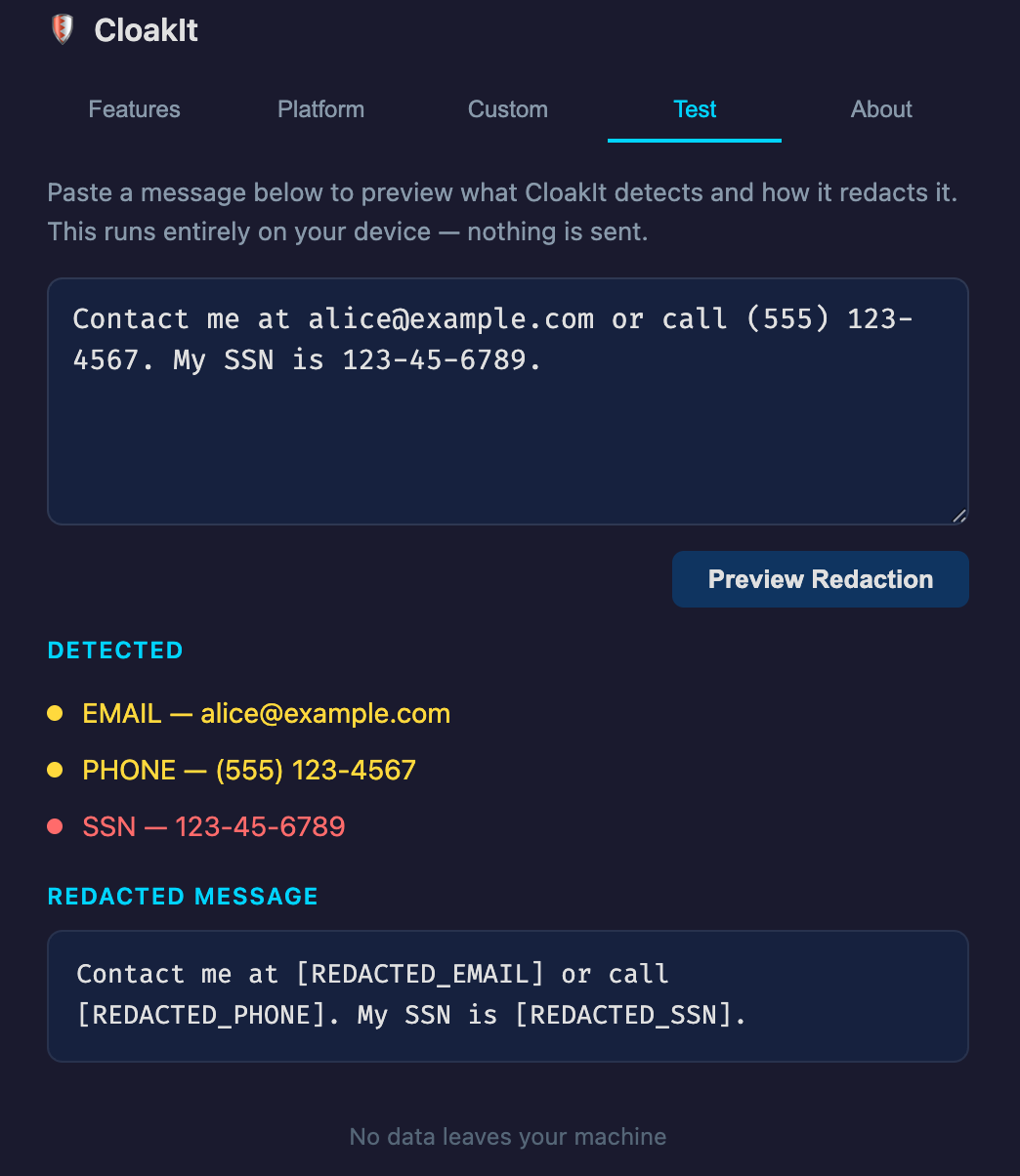
4. Test Tab
Preview how CloakIt detects and redacts sensitive data — offline, without sending anything.
- Paste any text into the text area.
- Click Preview Redaction.
- The Detected list shows every match with its type, value, and risk level.
- The Redacted Message pane shows the sanitised output with
[REDACTED_TYPE]placeholders.
This mirrors the live scanning engine exactly. Use it to verify custom patterns or check what a message looks like after redaction.
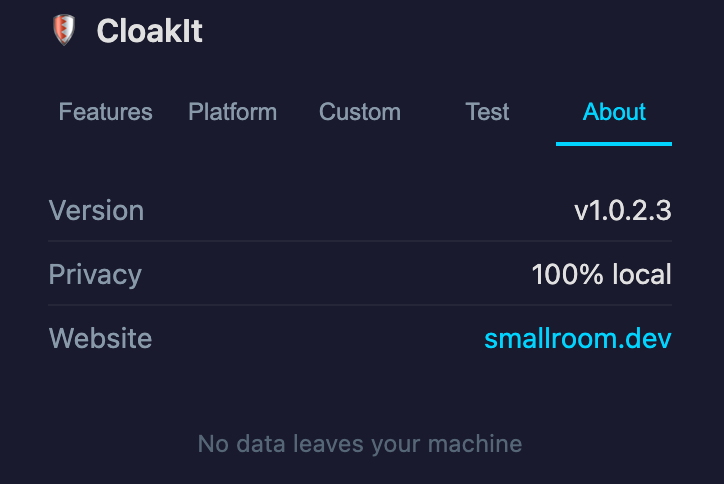
5. About Tab
Displays:
- Version — current extension version.
- Privacy — “100% local” (all detection runs on your device).
- Website — link to smallroom.dev.
Detection Modal Keyboard Shortcuts
| Key | Action |
|---|---|
Escape |
Close the modal (same as Cancel) |
Tab / Shift+Tab |
Cycle focus between buttons and editor |
Privacy
- All scanning happens locally in the content script. No data is sent to any server.
- The extension requires only the
storagepermission (to save your settings). - CloakIt collects no telemetry, no analytics, no usage data.
- Custom patterns and specific texts are stored in your browser’s local storage and never transmitted.
Pricing
Free